Live streams
How to clip a live stream while it is still live
Real-time live stream clipping for Twitch and YouTube: how server-side monitoring detects moments during the broadcast, what you get, and how to post before the VOD exists.
ClipperLab Editorial · · 5 min read
Most stream clips are cut from the VOD. That means the clipper starts working after the broadcast, after the VOD has finished processing, and after everyone else has seen the same moment. On a two-hour stream, the first usable clip often goes up three or four hours after it happened.
Real-time live stream clipping changes the order. The recording and the analysis run during the broadcast, so candidate clips exist while the streamer is still on air. This guide explains how ClipperLab's live monitoring works, what it does and does not do, and how to run it from a phone.
What happens when you paste a live link
Open a new project and paste the link of a stream that is currently live. ClipperLab detects that the source is a broadcast, not a recording, and switches to live monitoring.
From that point the work runs on ClipperLab's server:
- The stream is recorded server-side in rolling segments.
- Speech is transcribed continuously as the audio arrives.
- Moments with a complete thought, a strong reaction, or an answer to a chat question are marked as detected clips.
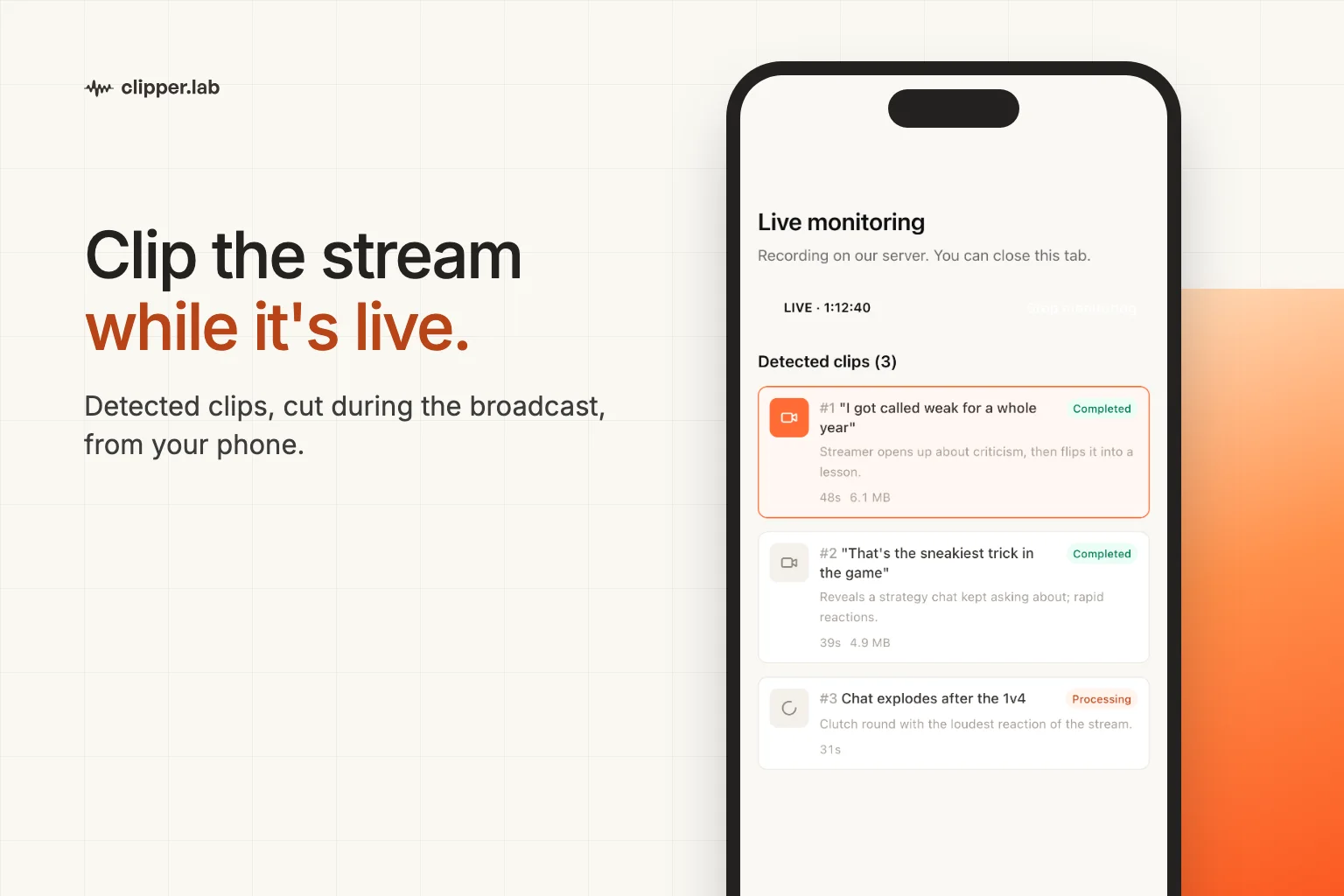
- Each detected clip is cut to 9:16, captioned, and listed in the monitoring view with a short reason.
Because the recording is on the server, your phone or laptop is not doing the capture. You can close the tab, switch apps, or lock the phone; the monitoring keeps running until the stream ends or you stop it.
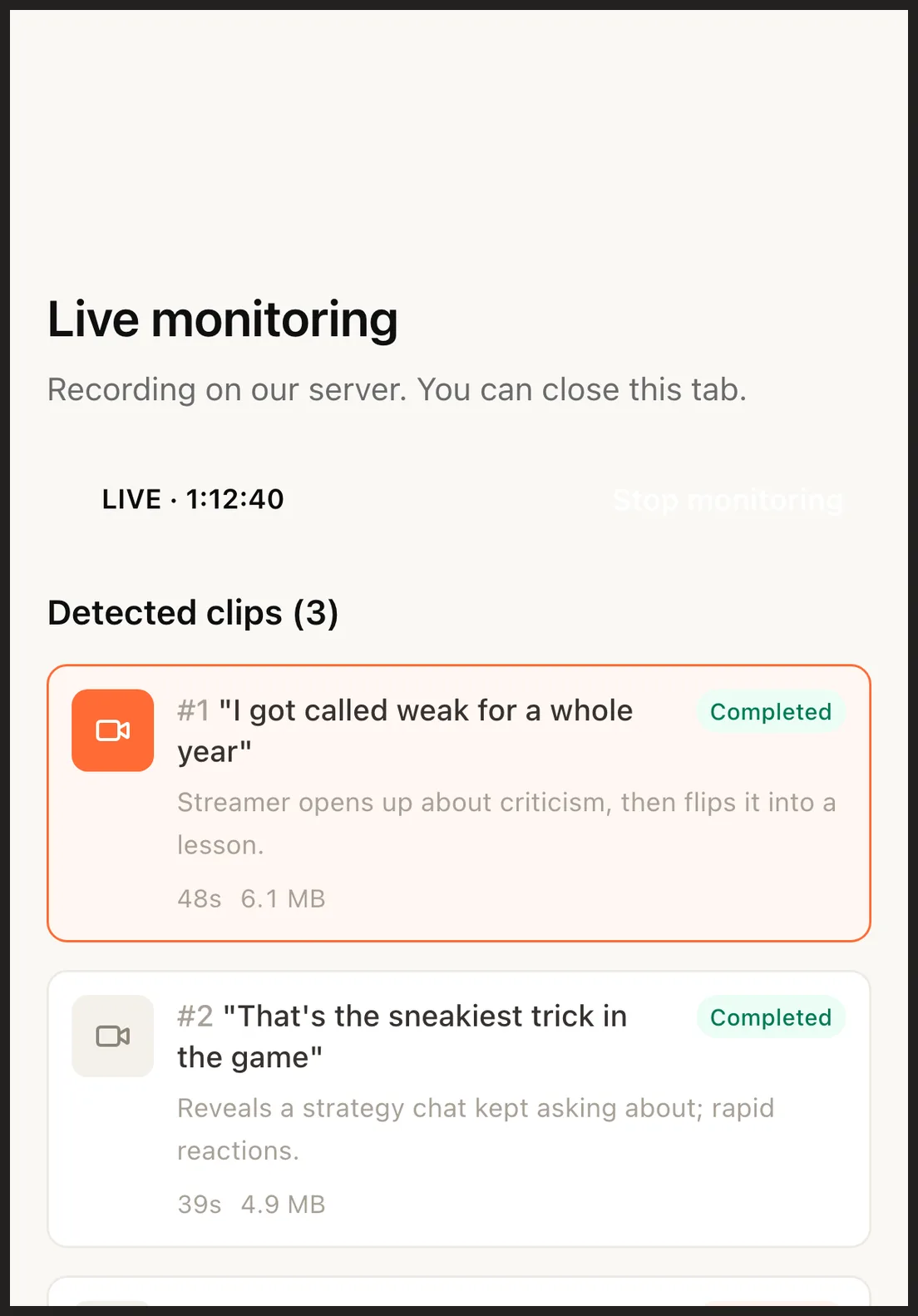
What a detected clip looks like
Every card in the list carries the same fields: a title taken from what was said, a one-line reason for the pick, the clip length, and the file size once it is ready. A clip that is still being cut shows a Processing badge; a finished one shows Completed and can be played, downloaded, or posted.
The reasons are worth reading. "Streamer opens up about criticism, then flips it into a lesson" tells you why the moment was chosen without watching it, which is how you triage twenty candidates in a minute.
Detection is tuned for complete moments rather than loud ones. A burst of chat activity on its own does not produce a clip; a burst of chat activity around a sentence that resolves does.
Timing: when the clip is actually ready
A detected clip is usually ready two to four minutes after the moment ends. The delay is the cut itself: the segment has to be transcribed, framed, captioned, and encoded. On a stream that runs for an hour, the first clips are typically posted while the stream still has forty minutes to go.
That is the practical edge. The VOD for the same stream will not be watchable until well after the broadcast, and clips cut from it will land hours later.
Running it from a phone
Live monitoring was built to be operated from a phone, because that is where most clippers are during a stream.
- Paste the link from the YouTube or Twitch app's share sheet.
- The monitoring view is a plain page; it works in any mobile browser without an extension.
- Closing the browser does not stop the recording. The server does the work, and the page only shows progress.
- Return to the page to review clips; each one plays inline before you download or post it.
If you prefer the browser extension for capture, that mode still exists, but the server-side path is the default and the one that keeps running when your phone sleeps.
Limits to know before an important stream
- Only public streams on supported platforms can be monitored. Members-only and private broadcasts are not accessible to the server.
- A stream can be monitored for a bounded number of minutes per session; check the current cap in your account before a long event.
- Detected clips are candidates. Review context before posting, as explained in the live stream highlight guide: a great answer without the question in frame confuses viewers.
- Posting clips from a channel you do not own may violate that channel's rules or the platform's policy. ClipperLab never posts on your behalf; that decision is yours.
A workflow that fits a live schedule
Run one small test on an ordinary stream before relying on this for a big one: confirm the source is recognised, that audio is present, and that the first clip appears. Then, during the real broadcast, check the list every fifteen minutes, post the strongest candidate, and let the rest accumulate for a highlight compilation after the stream.
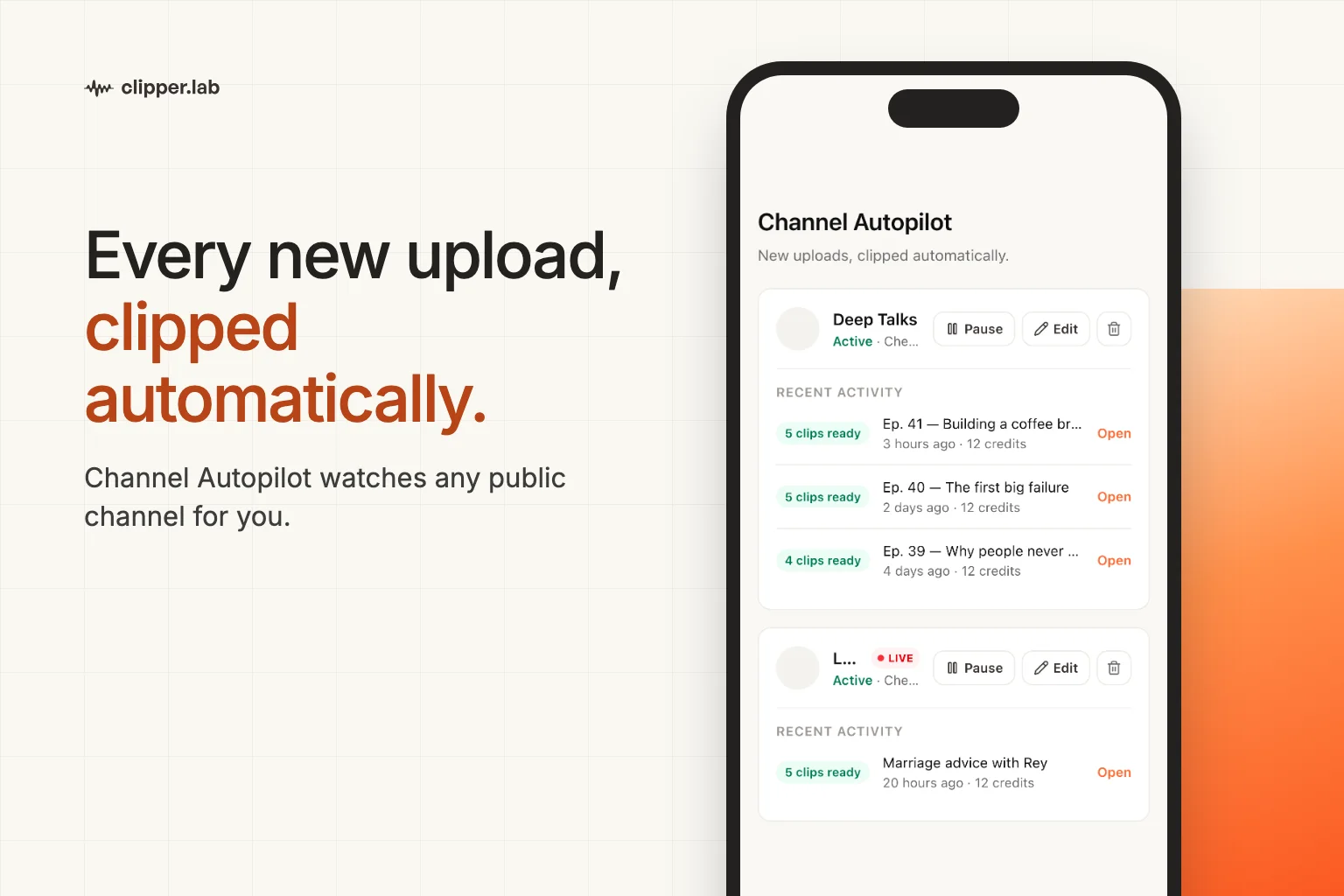
If you clip the same channels every week, Channel Autopilot can take over the recordings between streams, so live monitoring is only needed while something is actually on air.