Creator workflow
Auto-clip every new upload from a YouTube channel with Channel Autopilot
Set up Channel Autopilot to watch any public YouTube channel, detect new uploads, and turn each one into ready-to-post clips automatically, with filters, credits, and limits explained.
ClipperLab Editorial · · 4 min read
Clippers who follow several channels lose most of their time to checking, not editing: opening each channel, seeing whether there is a new upload, pasting the link, waiting, then repeating. The best clip of a viral podcast episode is usually posted by whoever noticed the upload first.
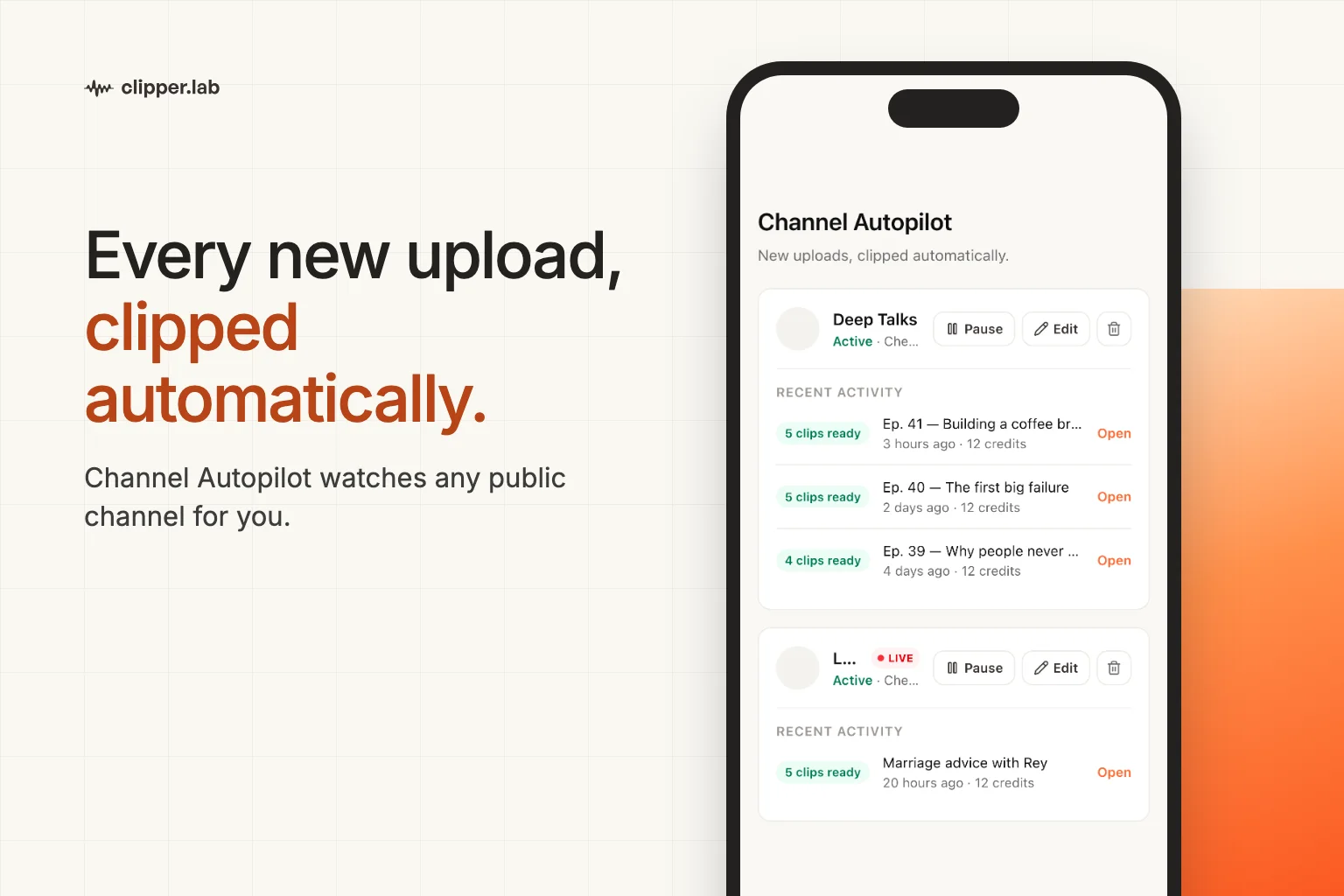
Channel Autopilot removes the checking. You register a public YouTube channel once; ClipperLab polls it, picks up each new upload, runs the full clipping pipeline on it, and leaves the finished clips in your dashboard. This guide covers setup, what gets clipped, how credits are charged, and the limits.
Setup takes one link
Go to Autopilot → New autopilot and paste the channel in any form YouTube uses: @handle, /channel/UC…, /c/…, or simply a link to one of its videos. No YouTube login or channel ownership is needed; anything public can be watched.
The wizard has four short steps:
- Channel: paste the link and confirm the preview (name, avatar, recent uploads).
- Video filters: minimum and maximum duration, and optional keywords the title must include or must not include. This is how you skip Shorts, trailers, or a series you do not clip.
- Clip settings: the same choices as a manual project, including aspect ratio, subtitle template, and the layout mode. They apply to every video this autopilot processes.
- Activate.
Only uploads published after activation are processed. Autopilot does not go back through the channel's archive; use a normal project for older videos.
What happens on a new upload
The channel is polled every ten minutes. When a new public video passes your filters, a job is queued with your saved settings, exactly as if you had pasted the link yourself. The clips, the transcript, and the per-clip layout plans land in the same project view you already use.
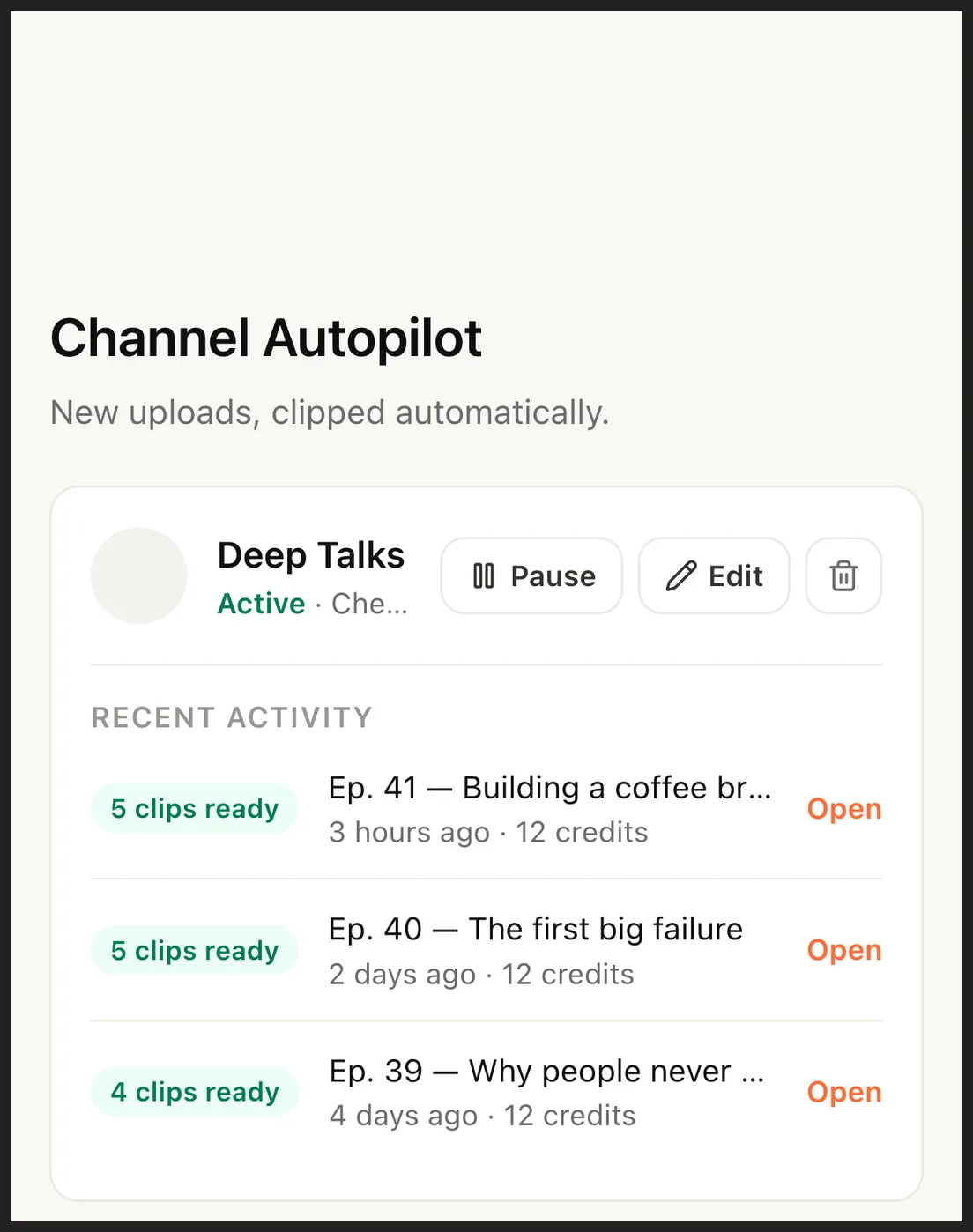
Each channel card shows its status, the recent activity with N clips ready per video, and an Open link straight to the project. A video that was skipped by a filter is listed as Skipped with the reason, so you can tell the difference between "nothing new" and "something new that did not match".
Live streams can be included too. With live enabled on a channel, a broadcast that starts is monitored with the real-time live clipping path, up to the minute cap you set.
How it is paid for
Autopilot runs on an Autopilot Pass: a 30-day pass with a channel limit and a credit allowance. Each processed video is charged to the pass allowance at the normal per-minute rate. When the allowance runs out, the autopilot pauses; you can let it fall back to your regular credits instead, which is a switch on the channel card.
Current tiers are on the pricing page. Before buying a pass, you can try one channel on your regular credits to see how many uploads it produces in a week and what the clips look like.
The pass never posts anything. Autopilot creates clips; publishing them is a separate, manual step, and for channels you do not own it is your responsibility to respect their rules.
Filters that save the most credits
- Minimum duration: set it to ten minutes or more for podcast channels so trailers and Shorts are skipped.
- Exclude keywords: "trailer", "teaser", "#shorts", or the name of a segment you never clip.
- Include keywords: useful for a channel that mixes formats, for example only titles containing "podcast" or "episode".
- Maximum duration: caps the credits a single unusually long upload can consume.
A skipped video costs nothing. It is cheaper to filter tightly and add a missed video manually than to clip everything a channel posts.
Reviewing what Autopilot made
Treat the output the way you would treat any batch of candidates: open the project, watch the first two clips, check captions on names and numbers, and adjust the framing on any keyframe that missed. The tool selection checklist applies here as well; the difference is that the candidates now arrive without being asked for.
Pause an autopilot at any time from its card. Pausing keeps the settings and the history; deleting removes the watch but leaves every project it created in place.